
Getting Started
How to Receive Reports by Email in Vaizle AI
Read MoreHow to Create Your First Agent in Vaizle AI
Read MoreHow to Add Guidance in Vaizle AI?
Read MoreGetting Started with Vaizle AI
Read MoreHow to Add and Manage Accounts in Vaizle AI
Read MoreHow to Add and Manage Contexts in Vaizle?
Read MoreHow to Create a New Chat in Vaizle AI?
Read MoreProduct Updates
Email scheduling is now available in Vaizle AI
Read MoreVaizle AI now supports multiple marketing platf...
Read MoreGoogle Ads is now live inside Vaizle AI
Read MoreVaizle’s new Meta Ads experience is now live
Read MoreIntroducing Live Agent for Real-time Meta Ads A...
Read MoreYou can now choose which AI model powers your V...
Read MoreIntroducing Live Web Search in Vaizle AI
Read MoreVaizle AI Update: Responses are now easier to r...
Read MoreHow to Create Your First Agent in Vaizle AI
An Agent carries out a task using instructions and data sources you set up in advance.
It is especially useful for work you repeat each day, week or month. Instead of explaining the same task every time, you set up the workflow once and run it when needed or on a schedule.
In the agents section, you will see some predefined templates that you can use. Or if you have a specific task in mind, you can create your own template.
Understand templates and Agents
A template is the recipe: it describes the work, instructions and resources needed. An Agent is your configured version of that recipe, with the actual accounts, Contexts and any schedule or destination selected.
You have two starting points:
- Use an existing template when one already matches your goal.
- Create your own template when you need a different workflow, then use it to configure an Agent.
Both routes finish with the same Agent setup. Creating or importing a template does not connect your accounts or create a running Agent by itself.
Before you start
Write down the outcome you need, the sources it should use and how often you need it. Make sure the relevant accounts are connected in Accounts and any needed business information is saved in Contexts. If you plan to email the output, add and verify the destination first.
For your first Agent, choose one clear, repeatable job. You can make it more detailed once you have reviewed a result.
Route 1: Use an existing template
- Select New Agent in the sidebar to open Choose template.
- Find a template that matches your goal and the sources you can provide.
- Select Preview to read its workflow and resource requirements.
- Select Use this template to open Configure Agent.
For example, the Official Google Ads Weekly Account Review template is a useful starting point for a weekly advertising review. Its required account is Brand 1 Google Ads; Meta Ads, Shopify and Search Console accounts are optional.
Read the required and optional labels carefully. A template should fit the job you need, rather than simply mention a platform you use.
Route 2: Create your own template with an AI assistant
Use this route when you want to describe your own repeatable workflow. Vaizle’s AI Builder prompt gives an AI assistant the platform’s capabilities, template format and instructions for designing a workflow.
1: Copy the builder prompt
Select New Agent, then Create Agent Template. In the editor, select Copy AI builder prompt.

Paste the copied prompt into an AI assistant, such as ChatGPT. This gives it the Vaizle reference before you describe your task. Copy a fresh prompt whenever you design a new template so you use the current capabilities and format.
Use Copy AI builder prompt to start designing a custom template, then Import JSON to bring it back into Vaizle.
2: Explain the job in everyday language
Describe the goal, sources, rules and output you want. Include the reporting period, comparisons or frequency when they matter. Ask the assistant to clarify anything important that is missing.
For example:
“Help me design a weekly growth review for an online store. Use Google Ads and Shopify, with the store website as business context. Compare the last complete week with the previous week. Highlight the strongest opportunities and any missing data. Produce a short summary with three priority actions and the evidence for each. Ask me questions before creating the final template.”
Use this as a starting point and change it to fit your work. Describe the types of sources needed; you will select the actual accounts in Vaizle later. Do not paste passwords or access tokens into the conversation.
3: Review the workflow and download the JSON
Read the proposed workflow before asking for the final file. Check that it uses supported sources, answers your question and handles missing data sensibly. Make sure any email or spreadsheet actions are ones you intend.
Ask the assistant to revise anything unclear. When ready, ask: “Give me the complete template as a downloadable JSON file in the format required by the Vaizle prompt.” JSON is the file format Vaizle uses to import templates; you do not need to write it yourself. If the assistant cannot provide a file, copy the complete JSON it produces and use the paste option below.
4: Import and save the template
Return to the template editor and select Import JSON. In Import Agent Template, use Choose File to upload the downloaded file, or paste its contents into Template JSON.
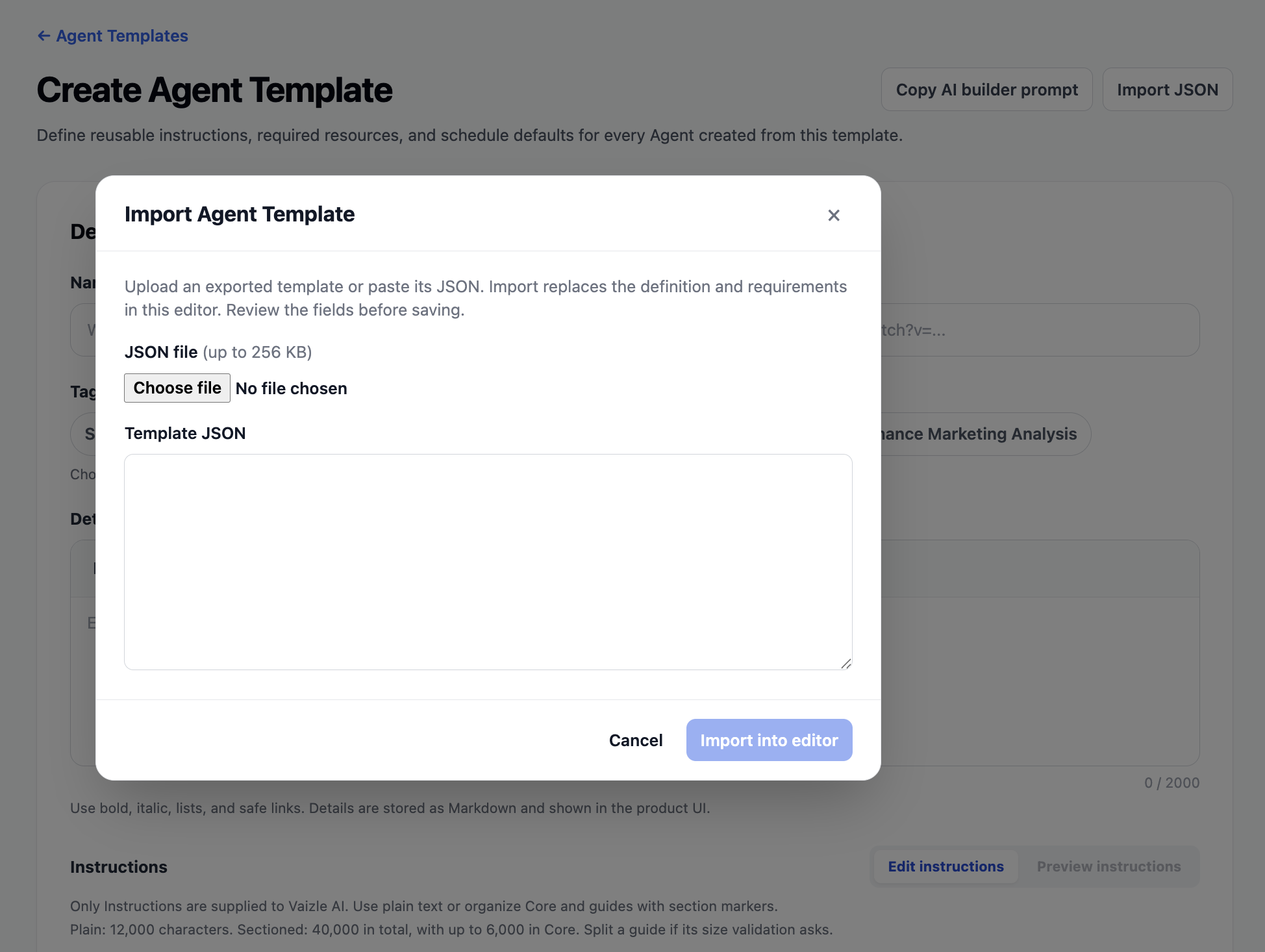
Select Import into editor. Review the populated name, instructions and resource requirements, and resolve any validation messages. Select Create Agent Template when the template is correct. Importing replaces the definition in the editor; it does not save the template by itself.
Find the saved template, select Use this template, and continue to Configure Agent. The imported definition describes the resources needed; you still choose the actual resources for your Agent.
Configure your Agent
Whichever route you chose, complete these steps in Configure Agent.
1: Name the Agent and select its resources
Enter an Agent name that includes the brand or client and the job, such as “Acme weekly growth review.”
Work through each resource section. Select the correct accounts, websites, spreadsheet files and tabs, or verified email destination as required by the template. Optional sections can be left unused if you do not need them.
Check every selection, especially when you manage several clients. A resource saved in your workspace still needs to be selected for this Agent.
2 Add optional Agent guidance
Use Agent guidance for priorities or preferences specific to this Agent. For example:
“Write for a client who is new to paid advertising. Explain unfamiliar terms and keep the recommendations practical.”
Keep the guidance consistent with the template’s task. You can leave it empty if the template already provides what you need.
3 Check the schedule and destination
If the template offers an optional schedule, select Add a schedule when you want recurring runs. Check the frequency, day, run time and Timezone. Review the first run and use Change first run if necessary.
For an emailed report, also select the intended verified email destination. A schedule starts the Agent’s work; allow time for that work before you need the output.
4: Review and create the Agent
Select Review Agent after completing the required fields. If it is unavailable, check for missing selections or validation messages.
On Review and create, check the name, sources, guidance, destination and schedule. When everything is correct, confirm creation.
Review the first result
Open the Agent from Agents to see its history. Its working screen includes Run now and Schedules.
Check the first result’s sources, reporting period, findings and any missing-data warnings. Confirm that it completes the job you intended before relying on it for a business decision or client deliverable.
Still have questions?
Connect with our team
If you have specific questions about our trial plan or Meta Ads Agent, our team is here to help.
Contact Support