
Getting Started
How to Receive Reports by Email in Vaizle AI
Read MoreHow to Create Your First Agent in Vaizle AI
Read MoreHow to Add Guidance in Vaizle AI?
Read MoreGetting Started with Vaizle AI
Read MoreHow to Add and Manage Accounts in Vaizle AI
Read MoreHow to Add and Manage Contexts in Vaizle?
Read MoreHow to Create a New Chat in Vaizle AI?
Read MoreProduct Updates
Email scheduling is now available in Vaizle AI
Read MoreVaizle AI now supports multiple marketing platf...
Read MoreGoogle Ads is now live inside Vaizle AI
Read MoreVaizle’s new Meta Ads experience is now live
Read MoreIntroducing Live Agent for Real-time Meta Ads A...
Read MoreYou can now choose which AI model powers your V...
Read MoreIntroducing Live Web Search in Vaizle AI
Read MoreVaizle AI Update: Responses are now easier to r...
Read MoreHow to Add and Manage Accounts in Vaizle AI
You can connect and manage all the marketing accounts you want Vaizle to work with from the Accounts section.
Once an account is connected, it becomes available to use across your Chats and Agents.
You can start with only the accounts you need today and add more whenever your work requires them.
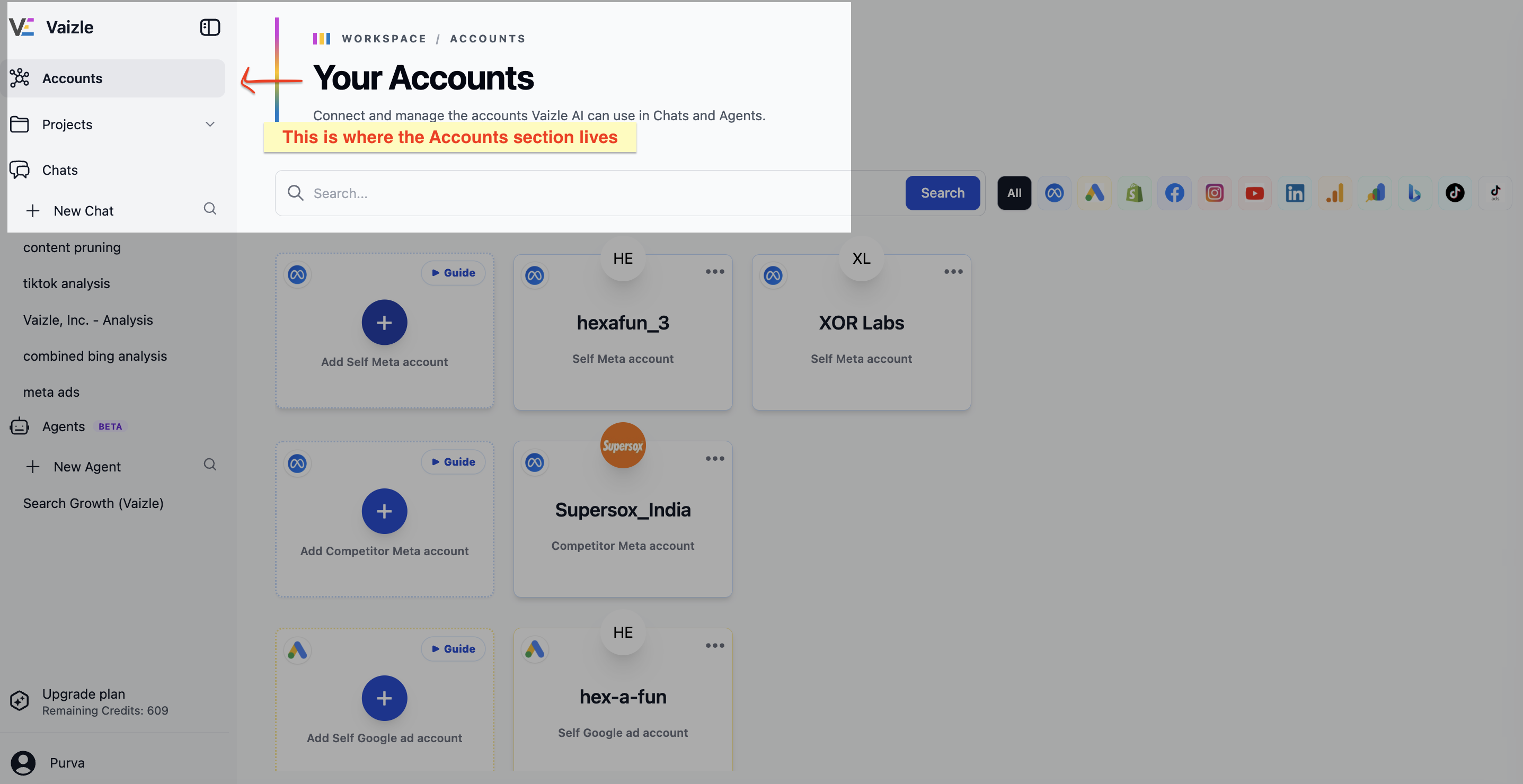
1. Open the Accounts section
From the left-side navigation in Vaizle, click Accounts.
This opens the Your Accounts screen, where you can see the accounts already connected to your workspace and add new ones.
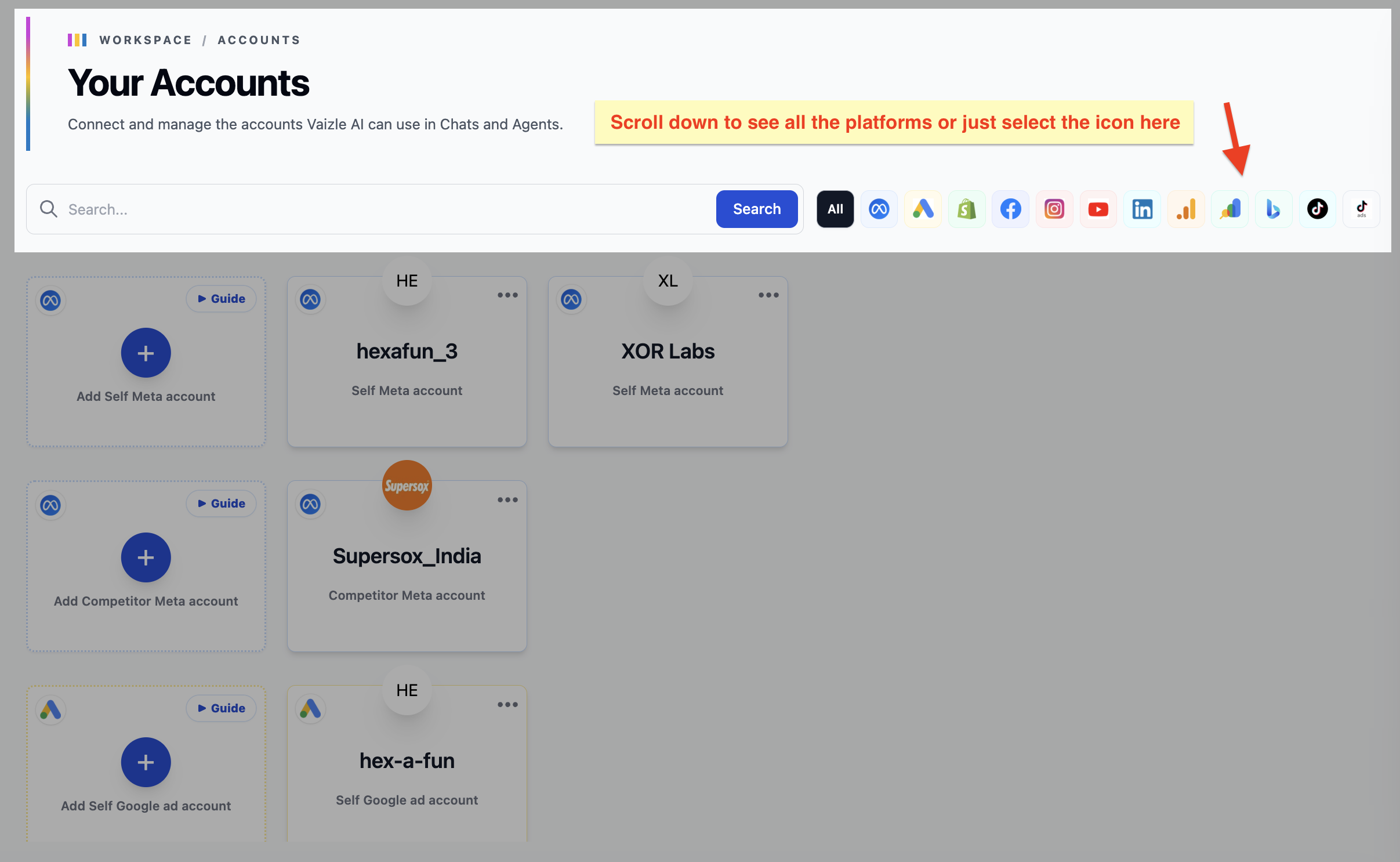
You can also use the platform filters at the top of the screen to quickly find accounts from a particular source.
2. Connect a new account
Choose the platform you want to connect and click the option to add an account. Complete the login and authorization process for that platform, then select the account you want to make available inside Vaizle.
Once connected, the account will appear on your Accounts screen.
You can repeat this whenever you want to add another account.
There is no need to connect every platform at once. Add the accounts relevant to your current work and come back later when you need something else.
3. Connect accounts from different login profiles
Your marketing accounts do not all need to belong to the same login profile.
For example, you may have access to one ad account through one platform profile and another account through a different profile. When adding an account, you can choose the option to log in with another profile.
Sign in with the profile that has access to the account you want to add and complete the connection process.
You can repeat this with other profiles as needed.
This allows you to keep multiple accounts available in the same Vaizle workspace even when access to those accounts comes from different platform logins.
4. Add multiple accounts from the same platform
You are not limited to one account per platform.
You can connect multiple accounts when you work across different brands, clients, markets, stores, pages, or advertising accounts.
Each connected account appears separately on the Accounts screen, so you can choose exactly which one you want Vaizle to work with later.
You can use the search bar and platform filters to find a particular account when your workspace starts to grow.
5. Use connected accounts in your Chats
Connecting an account makes it available inside Vaizle, but it does not tie that account to one specific Chat.
You can add a connected account to an existing chat from the options available in the Chat box. This is useful when your investigation starts with one account and you later need another source to continue the work.
You can also use connected accounts when creating a new Chat if you want to keep a separate task, client, brand, or project organized on its own.
6. Use connected accounts with Agents
The accounts on your Accounts screen can also be used as inputs when setting up supported Agent workflows.
This means you do not need to reconnect the same account separately for Chat and Agents.
Connect it once to your Vaizle workspace, then use it wherever that account is relevant.
7. Manage or remove an account
Your connected accounts are displayed as individual cards on the Accounts screen.
To manage an account, open the three-dot menu on its card.
From here, you can access the available account management options, including removing an account you no longer want connected to Vaizle.
This makes it easy to keep your workspace updated as the accounts you work with change.
Keep your Accounts screen up to date
You do not need to decide on your complete account setup when you first join Vaizle.
Start with what you need, then continue connecting accounts as new platforms, clients, brands, or marketing tasks become relevant.
Once connected, your accounts are ready to use across the Chats and Agents where you need them.
Still have questions?
If you need help connecting or managing an account, our team is here to help.
Contact [email protected].
Still have questions?
Connect with our team
If you have specific questions about our trial plan or Meta Ads Agent, our team is here to help.
Contact Support