
Getting Started
How to Receive Reports by Email in Vaizle AI
Read MoreHow to Create Your First Agent in Vaizle AI
Read MoreHow to Add Guidance in Vaizle AI?
Read MoreGetting Started with Vaizle AI
Read MoreHow to Add and Manage Accounts in Vaizle AI
Read MoreHow to Add and Manage Contexts in Vaizle?
Read MoreHow to Create a New Chat in Vaizle AI?
Read MoreProduct Updates
Email scheduling is now available in Vaizle AI
Read MoreVaizle AI now supports multiple marketing platf...
Read MoreGoogle Ads is now live inside Vaizle AI
Read MoreVaizle’s new Meta Ads experience is now live
Read MoreIntroducing Live Agent for Real-time Meta Ads A...
Read MoreYou can now choose which AI model powers your V...
Read MoreIntroducing Live Web Search in Vaizle AI
Read MoreVaizle AI Update: Responses are now easier to r...
Read MoreHow to Receive Reports by Email in Vaizle AI
Use an Email Context to save a report destination in Vaizle. Verify the address, then select it in the Chat or Agent that should use it.
For example, a brand team can receive a weekly performance review in its reporting inbox. An agency can choose the correct destination for each client’s report.
Choose the destination explicitly during setup. Do not assume that a report will be sent to the email address you use to sign in.
Add an email destination
1. Open your profile menu at the bottom of the sidebar.
2. Select Contexts.
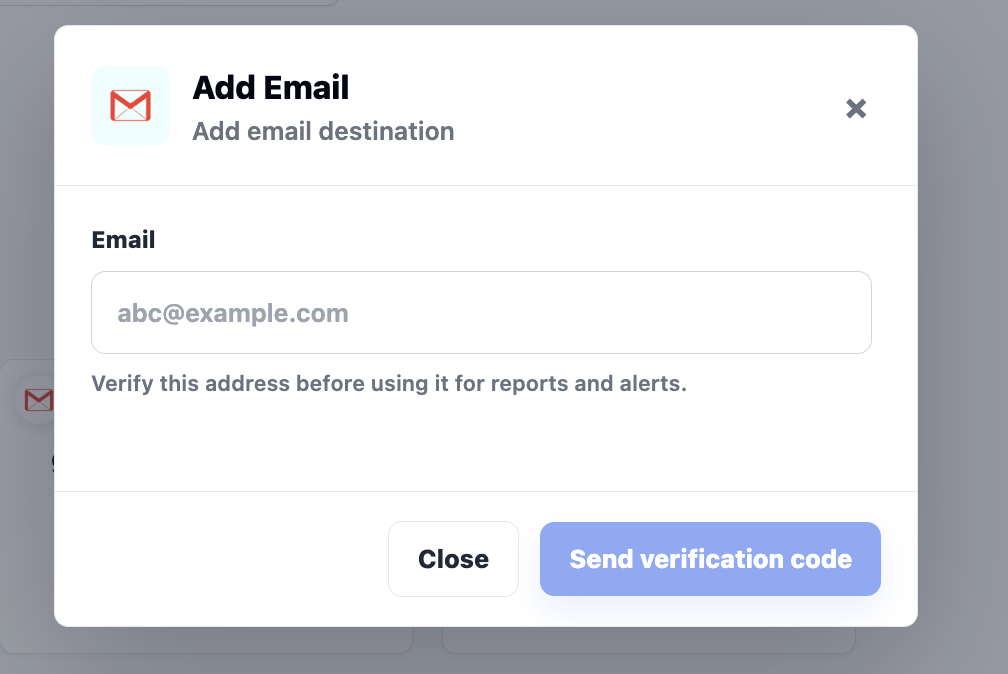
3. Select + Add Email.
4. Enter the report destination in Email, then select Send verification code.
Check the address carefully before requesting the code. Use a mailbox that the intended recipient can access, and make sure the report is appropriate for everyone who can read that inbox.
Verify the email address
1. Open the destination mailbox and find the verification email.
2. Enter the received code in Verification code.
3. Select Verify and add.
If you closed the form, select the Email card marked Verification required to reopen it. If the code has expired or you need a new one, select Resend code and use the latest code you receive.
Once verified, the destination is available to select. Adding it does not automatically send a report.
Send a report from a Chat
1. Open the Chat containing the analysis you want to share.
2. Select Context in the message composer, then choose the Email filter.
3. Use the circular selection control to select the correct verified Email card.
4. Check the selected count and close the panel with the X in the top-right corner.
5. Ask Vaizle to email the specific report to that destination.
For example: “Email a summary of this analysis to the selected email destination. Include the main finding and three recommended actions.”
Check the address before making the request, especially when you work with several clients. Selecting an Email Context makes the destination available; your request tells Vaizle what to send.
Select the destination for an Agent
Choose a template that includes email reporting, then open Configure Agent.
1. Find the Email section. If email is optional, select Configure email destinations.
2. Find the recipient requirement for that template, such as Weekly Review Recipient in Google Ads Weekly Account Review.
3. Select the correct verified email destination.
4. Check that the Agent’s accounts, Contexts and recipient all belong to the intended brand or client.
5. Complete the remaining required fields, select Review Agent and check the setup before confirming creation.
Some templates require an email destination; others make it optional. Follow the requirements for the template you chose.
Choose when the report should run
If you want recurring reports, configure the Agent’s schedule as well as its email destination.
Check the frequency, timezone, run time and first-run date. For example, a weekly client review might run each Monday morning in the client’s timezone.
The schedule starts the Agent’s work. The analysis and email delivery take place as part of that workflow, so leave time before any meeting where you need the result.
Make the report useful for its reader
Use the optional Agent guidance field to explain who will read the report and how you want it presented. For example:
“Write for a client who is new to paid advertising. Explain unfamiliar terms. Start with the main finding and finish with three recommended actions.”
Keep the request consistent with the template’s task. Also check the reporting period and metrics you want the Agent to review.
Check that a report arrived
After a run, check the Agent’s history for its result and any email-sending information, including the destination shown in Sent to when available. Check the recipient’s inbox to confirm arrival.
If the report is missing:
- Check that the destination is verified and selected for that Agent.
- Confirm that the scheduled run was due, using its timezone and first-run date.
- Review the run history for errors or an unfinished run.
- Check the recipient’s spam or junk folder.
- Confirm that the destination is the address you intended to use.
A completed analysis and an email arriving in the inbox are separate things to check. Review both before relying on a recurring report for a client deadline.
Still have questions?
Connect with our team
If you have specific questions about our trial plan or Meta Ads Agent, our team is here to help.
Contact Support