
Getting Started
How to Receive Reports by Email in Vaizle AI
Read MoreHow to Create Your First Agent in Vaizle AI
Read MoreHow to Add Guidance in Vaizle AI?
Read MoreGetting Started with Vaizle AI
Read MoreHow to Add and Manage Accounts in Vaizle AI
Read MoreHow to Add and Manage Contexts in Vaizle?
Read MoreHow to Create a New Chat in Vaizle AI?
Read MoreProduct Updates
Email scheduling is now available in Vaizle AI
Read MoreVaizle AI now supports multiple marketing platf...
Read MoreGoogle Ads is now live inside Vaizle AI
Read MoreVaizle’s new Meta Ads experience is now live
Read MoreIntroducing Live Agent for Real-time Meta Ads A...
Read MoreYou can now choose which AI model powers your V...
Read MoreIntroducing Live Web Search in Vaizle AI
Read MoreVaizle AI Update: Responses are now easier to r...
Read MoreHow to Add Guidance in Vaizle AI?
Guidance tells Vaizle what matters to your business and how you want answers written. You can explain your main goal, define an important metric or describe who will read a report.
For example, a brand might want recommendations that focus on qualified leads. An agency might want a client report that explains technical terms and ends with a short action list.
Choose where to add Guidance
There are two places to add instructions:
- Guidance in Contexts: Save instructions you want to reuse, then select that Guidance in each Chat that needs it.
- Agent guidance: Add instructions for one Agent while setting it up. This optional field lets you explain your priorities or preferred report format for that Agent.
A saved Guidance Context is available to choose. Saving it does not automatically apply it to every Chat.
Add reusable Guidance
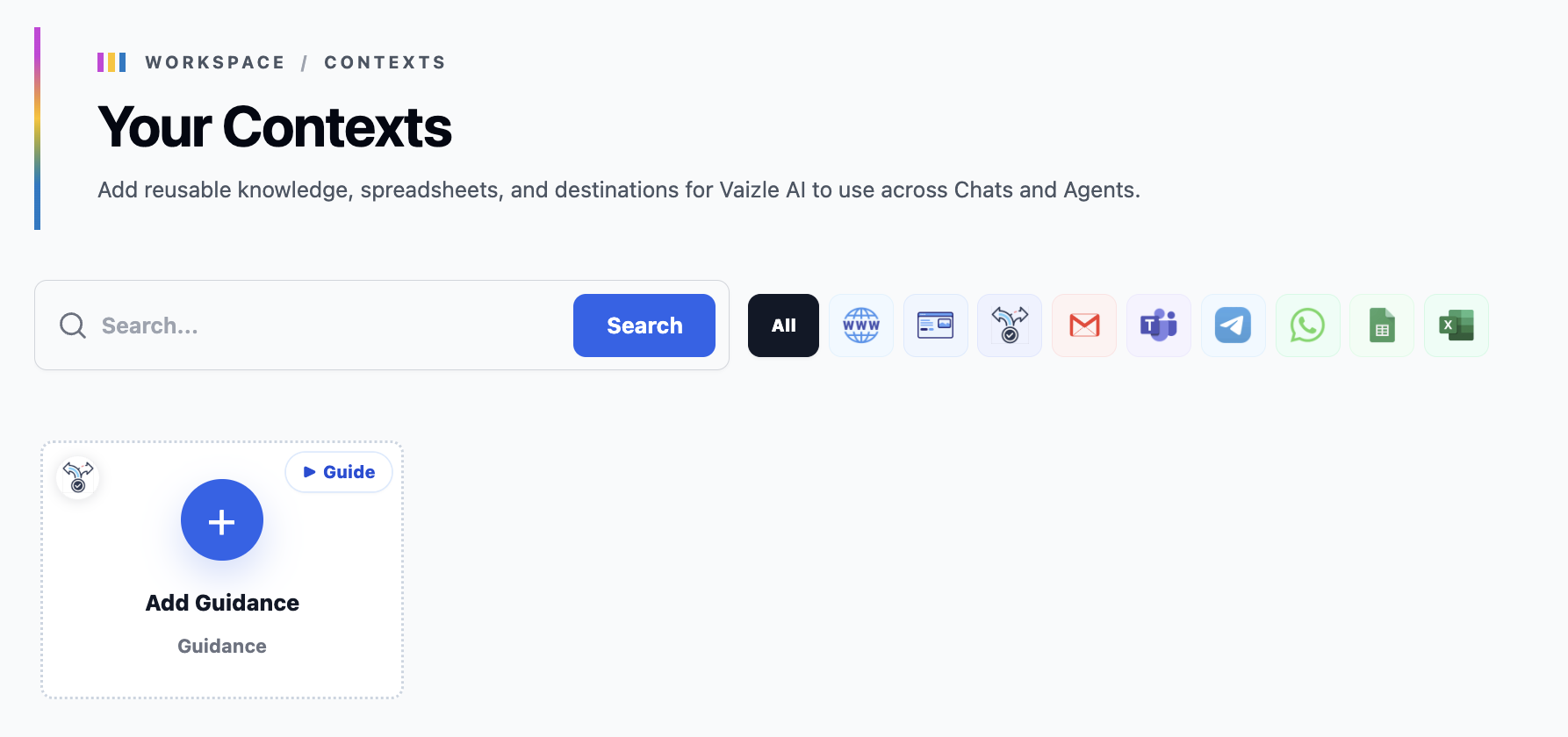
Add Guidance is available on the Contexts page.
- Open your profile menu at the bottom of the sidebar.
- Select Contexts.
- Select + Add Guidance.
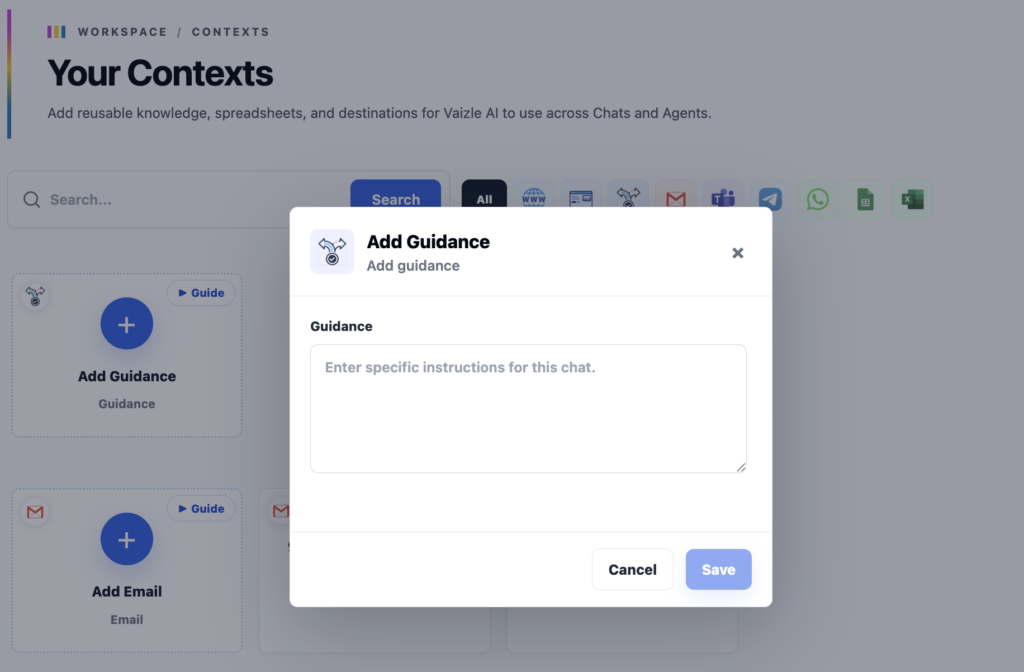
- Enter your instructions in the Guidance field. Use a separate line for each clear instruction.
- Select Save.
Enter your instructions in the Guidance field, then select Save. You can follow processing progress in Context Activity. Processing continues when you close that popup.
Use your Guidance in a Chat
- Open the Chat where you want to use the instructions.
- Select Context in the message composer.
- Find your saved Guidance. Use the search or category filters if needed.
- Use the circular selection control on its card to select it.
- Check the selected count, then close the panel with the X in the top-right corner.
Ask your question in the Chat. Include the task and date range in your question, even when your broader preferences are saved as Guidance.
For example, your Guidance could explain that qualified leads matter most. Your question could then ask: “Compare the last complete month with the month before and identify the campaigns that need attention.”
Add Guidance to an Agent
During Configure Agent, enter your instructions in the optional Agent guidance field. Keep them specific to the job the Agent is being set up to do.
For a weekly client report, you could write:
“Write for a client who does not work with analytics every day. Explain unfamiliar terms. End with three recommended actions, with a short reason for each.”
Continue choosing the accounts, Contexts and other resources required by the template. Guidance provides instructions; you still need to select the data sources the Agent will use.
Write instructions that are easy to follow
Start with the details that could change the answer:
- Business goal: “Our priority is qualified demo requests.”
- Missing information: “If lead quality data is unavailable, say so before recommending where to spend more.”
- Audience: “Write for a client who is new to paid advertising.”
- Format: “Start with the main finding, then give three next steps.”
- Reporting rule: “Keep each advertising platform’s reported conversions separate.”
Be specific. “Compare results with our target cost per lead of £50” gives Vaizle more useful direction than “Improve performance.” Use your own target and explain what the metric means for your business.
Keep instructions relevant to the selected brand or client. Review them when goals, targets or reporting needs change, and remove contradictions before using them again.
Still have questions?
Connect with our team
If you have specific questions about our trial plan or Meta Ads Agent, our team is here to help.
Contact Support