What Is Clawdbot? How It Works and How to Set It Up (Now Called Moltbot)
Clawdbot (now Moltbot) is trending. Here’s what it is, how it works, and how to set it up without getting lost in technical steps.
If you’ve been on Tech Twitter or browsing GitHub in the last week, you’ve probably noticed two things: everyone is suddenly trying to buy a Mac Mini, and everyone is talking about a lobster.
We aren’t talking about a new seafood trend. We’re talking about Moltbot (born as Clawdbot), the open-source AI phenomenon that has completely taken over the developer timeline. It hit 60,000 GitHub stars in a heartbeat and caused such a stir that people are literally treating old Mac Minis like gold bricks just to run it.
But strip away the hype (and the chaotic rebrand), and what actually is Moltbot? Is it just another chatbot, or is it the future of how we use computers?
In this guide, we’ll keep it practical:
- What Clawdbot is (in plain English)
- How it works (channel → skills → actions)
- How to set it up (without wasting your whole day)
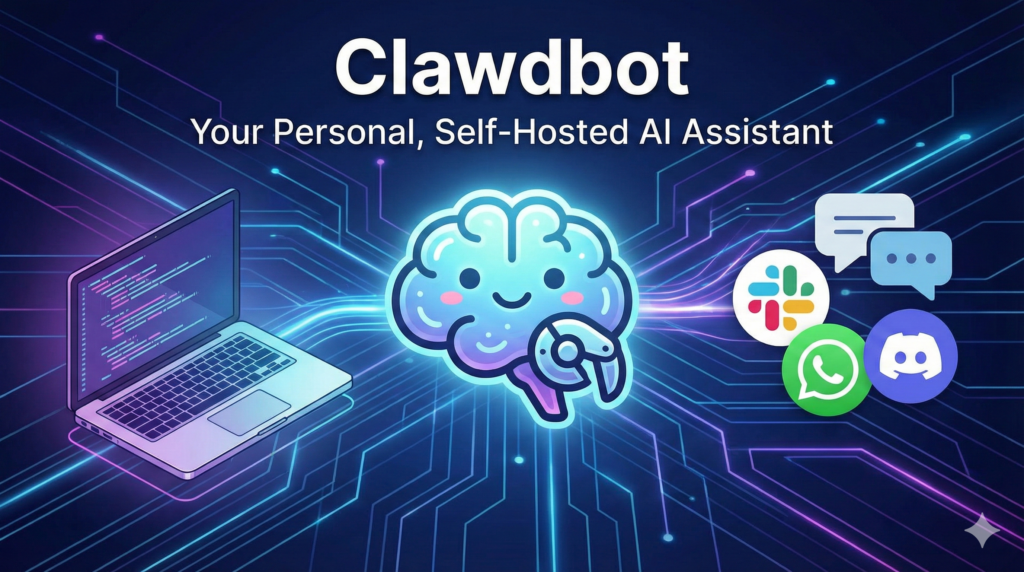
What is Moltbot (Clawdbot)?
Moltbot is an open-source, local-first personal AI assistant designed to live where work already happens: your chat apps. You run a single background process called the Gateway, which acts as the control plane for everything the assistant does, including your connected channels, tools, and events.
Once the Gateway is running, Clawdbot can connect to channels like WhatsApp, Telegram, Slack, Discord, Google Chat, and more, so you can message it like a teammate instead of opening yet another dashboard or app.
The reason people are excited about it is that it’s built around skills (integrations). Skills are what turn it from “an AI that answers” into “an AI that can move tasks forward.” Instead of only generating text, it can fetch information from connected services, structure it into something usable, and (if you allow it) trigger actions through those integrations.
So the shift is simple: most AI tools stop at advice. Clawdbot is part of the “agent” wave that tries to help you finish the work by connecting chat + tools under one control plane, which is also why setup and permissions matter more than they do with a normal chatbot.
How Moltbot Came Into Existence?
The project was created by Peter Steinberger, an Austrian software engineer and the founder of PSPDFKit. Steinberger built the tool to solve his own need for a “digital employee” that could handle administrative drudgery automatically.
He originally released it under the name Clawdbot in January 2026. However, after the project went viral—amassing over 60,000 GitHub stars in a matter of days—Anthropic (the makers of the Claude AI model) requested a name change to avoid trademark confusion. Steinberger rebranded the project to Moltbot, a reference to a lobster molting its shell to grow.
Why Is Moltbot Different?
Moltbot distinguishes itself from other AI tools in three specific ways:
- Local Execution: It runs on your hardware (Mac Mini, Linux VPS, or PC). This means your data stays with you, and the AI can control local software (e.g., “Open this PDF,” “Run this Python script”).
- Persistence: Standard chatbots wipe their “memory” when you close the tab. Moltbot maintains a continuous, long-term memory of your projects, preferences, and past conversations.
- Proactive Behavior: Because it runs 24/7 as a background process, Moltbot can initiate conversations. It can text you at 8:00 AM with a briefing, or ping you when a long-running coding task is finished.
What Can Moltbot Actually Do?
The reason Moltbot has 60,000+ stars on GitHub isn’t just because it’s cool tech; it’s because it feels like the first time AI has had “hands.”
Most chatbots are passive. You talk, they type. Moltbot is agentic—meaning it can plan tasks and execute them on your machine.
Here are three real examples from the community that show off the power:
1. The Car Negotiation (The Viral Hit)
This is the story that broke Tech Twitter. A user named AJ Stuyvenberg tasked his Moltbot with buying a car.
- The Goal: Find a specific car below sticker price.
- The Execution: The bot autonomously searched dealership inventories, filled out inquiry forms on their websites, and monitored his email for replies. When dealers responded, the bot replied (using his email), playing them off against each other by sharing competing quotes.
- The Result: It successfully negotiated a deal that saved him $4,200, all while he slept.
Clawdbot just saved me $4,200 on a car pic.twitter.com/VsDRDnvChR
— AJ Stuyvenberg (@astuyve) January 22, 2026
2. The “Navi” Home Assistant
Federico Viticci (of MacStories) turned his Mac Mini into a smart home hub named “Navi.”
- The Setup: He connected Moltbot to his Philips Hue lights, Sonos speakers, and Spotify account using community-built “Skills.”
- The Interaction: Instead of using rigid voice commands like “Turn on lights,” he sends natural texts via Telegram: “I’m focusing now, set the mood.” The bot dims the lights, puts his phone on Do Not Disturb, and queues up a focus playlist on the speakers. It even sends him audio replies using ElevenLabs voice cloning.
You can go and read more here.
3. The Self-Healing Coder
Developers are using Moltbot as a 24/7 “Junior Engineer.”
- One user set it up to watch their GitHub repository overnight. When a test failed at 3:00 AM, Moltbot didn’t just alert them—it read the error log, identified the bug in the code, wrote a fix, and opened a “Pull Request” to solve it. The developer woke up to a notification saying, “I fixed the build error for you.”
Just like the iPhone has the App Store, Moltbot has MoltHub (formerly ClawdHub). This is a community marketplace where users upload “Skills” – packages of code that teach your bot new tricks.
- Spotify Control: Tell your bot to “Play my focus playlist” on your home speakers.
- Travel Agent: Users have built skills that browse flight sites to find the cheapest tickets.
- Calendar Guard: A skill that scans your Google Calendar and politely declines meetings that conflict with your “Deep Work” blocks.
How Does Moltbot Work?
You don’t need to be a systems engineer to understand the architecture. It basically has three parts:
- The Body (Your Computer): You run the Moltbot software on a machine that stays on 24/7 (like that Mac Mini or a cloud server). This is where the files live and where the actions happen.
- The Brain (The AI): The software connects to a smart Large Language Model—usually Anthropic’s Claude 3.5 Sonnet or Opus. Why Claude? Because it currently has the best “reasoning” capabilities to plan out complex, multi-step tasks without getting confused.
- The Mouth (The Chat App): You link the bot to WhatsApp, Telegram, Signal, or iMessage. This acts as your remote control.
The Process: When you text “Organize my desktop,” the Body sends that text to the Brain. The Brain thinks: “Okay, I need to list the files on the Desktop, check their extensions, create folders for ‘Images’ and ‘Docs’, and move the files.” It sends those commands back to the Body, which actually moves the files. Then, the Mouth texts you: “Done. I moved 14 files.”
How to set up Moltbot (without getting technical)?
Clawdbot is not a “sign up and start typing” tool. You don’t log into a website and use it like ChatGPT.
You install it, run it on your own device (or a server), and then connect it to the chat app where you want to talk to it. That’s the whole setup in one sentence.
Here’s the simple step-by-step:
1) Pick where you want Clawdbot to run
You have two realistic options:
- Run it on your laptop (best for trying it the first time)
- Run it on a small server (best if you want it “always on”)
If you’re just testing, start on your laptop. It reduces variables and makes troubleshooting easier.
2) Download and install the project
Clawdbot is distributed through its official project pages (GitHub and docs). The “install” step is basically: download the CLI/app, then run the onboarding flow that sets up the assistant for you. (We link the exact steps in our help doc.)
What you should expect at this stage:
- a short installer step
- a setup wizard (onboarding)
- a local dashboard/control panel you can open in your browser
3) Do a quick “local test” before connecting WhatsApp/Slack
Before you connect any chat app, do a simple test from the dashboard/control panel.
If you can open the dashboard and send a message there, you’ve confirmed the core setup is working. Connecting chat apps becomes much easier after this.
4) Connect your first chat app (your “channel”)
Now choose one channel to start with:
- WhatsApp (most common for personal use)
- Slack (most common for teams)
- Telegram/Discord (popular for testing)
During this step, you’ll authenticate the channel (for example, scanning a QR code for WhatsApp or pasting a token for Slack/Telegram). After that, you can message Clawdbot from that app like you’d message a teammate.
5) Start with “read-only” usage first
This sounds boring, but it’s the best way to enjoy the tool without stress.
For the first day, treat Clawdbot like a smart analyst:
- “Summarize what I missed today”
- “Turn this thread into a checklist”
- “Draft an update I can send”
Once you’re comfortable, you can explore “skills” that connect it to other tools.
6) Add skills only after you know what you want it to do
Skills are what make Clawdbot powerful, but they’re also where setups get messy.
So don’t start by installing 10 skills. Start by answering:
“What’s one recurring thing I want this assistant to help me finish?”
Then install only the skill that supports that.
Final words
Clawdbot is exciting for one simple reason: it’s trying to move AI from “answering questions” to “helping you finish work” by living inside your chat apps and connecting to real tools. If you’re curious, start small. Get it running locally, test it with read-only tasks, then connect one channel and one skill at a time. If you want the exact download and install steps, follow our setup guide (linked above) and you’ll be up and running quickly.
Get the latest marketing news and trends
Delivered straight to your inbox.
Thank you for subscribing!
Stay tuned for the latest updates.
Google is testing a new program that could change how publishers are...
Shopify has added Meta as an AI commerce channel in Agentic Storefronts,...
Meta is giving AI a more direct role in deciding which actions...
Meta is expanding Meta AI with a new set of features designed...