







Your competitor’s ads are everywhere. Their carousel is getting engagement. Their video has comments. You need to know what they’re doing.
Most marketers guess. They scroll their feed hoping to spot competitor ads. Or they pay $200/month for spy tools that show the same data Meta gives you free.
The Meta Ad Library exists for this exact reason. Every active ad. Searchable. Free. But here’s the thing: most people use it like a phone book. They search a brand, scroll, screenshot, done.
You’re leaving money on the table.
This guide shows you how to actually use the Meta ad library — advanced search operators, workflow integration, troubleshooting when it breaks, and how to connect what you find to your own analytics. By the end, you’ll have a competitive research system, not just a collection of screenshots. So, let’s dive right in!
TL;DR: The Meta Ad Library (formerly Facebook Ad Library) is a free, searchable database of all active ads running across Facebook, Instagram, Messenger, and Audience Network. You can access it at facebook.com/ads/library without a Facebook account, search by brand name or keyword, and filter by platform, country, and ad type to analyze competitor campaigns and find creative inspiration.
The Meta Ad Library is a free, public database containing every active ad across Facebook, Instagram, Messenger, and Audience Network. Meta launched it in 2019 for political ad transparency, and it now holds 7 years of political ads plus commercial ads from the past year (in EU/UK markets) or past 30 days (everywhere else).
You can search any brand or keyword. No subscription. No login required for most categories.
Here’s what you need to know about Meta ad library: this isn’t a “spy tool” with targeting data and budgets. It’s a creative archive. You see what ads look like, where they run, and how long they’ve been active. That’s it. You won’t see how your competitors picked their audience or how much they spent on ads.
But Meta ad library alone can be a very helpful tool in understanding the paid social strategy. When a brand spends money on an ad for 90+ days, you know it’s working. When they suddenly launch 15 video ads, something changed in their strategy. The library shows patterns, and patterns reveal decisions.
| What You CAN See | What You CAN’T See |
|---|---|
| Ad creative (images, videos, copy) | Exact ad spend amounts |
| Active date range | Detailed targeting criteria |
| Platform placement | Conversion data |
| Page transparency info | Audience demographics |
| Political ad disclaimers (7-year history) | Click-through rates |
One more thing: In October 2025, the EU’s Temporary Targeted Political Advertising (TTPA) regulation changed data retention rules. EU and UK political ads were frozen, and commercial ad archives now extend to one year instead of 30 days. If you’re researching European brands, you’ll see more historical data than US brands.
You have three ways to access. Pick based on what you’re researching.
Go to facebook.com/ads/library. That’s it.
No login required. You land at the search interface. Type a brand name or keyword, hit enter, start analyzing.
Best for: Quick competitor research sessions.
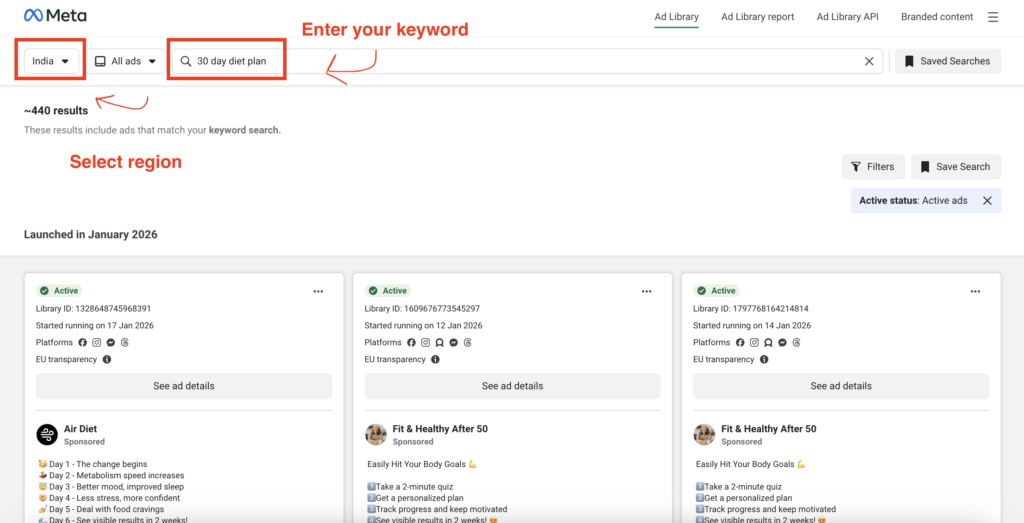
Visit your competitor’s Facebook Page. Click on ‘About’ tab below the cover image. Scroll down to “Page Transparency” option. Here, you will see that this page is currently running ads. Click on ‘See All’ and then go to ‘Ad Library.’
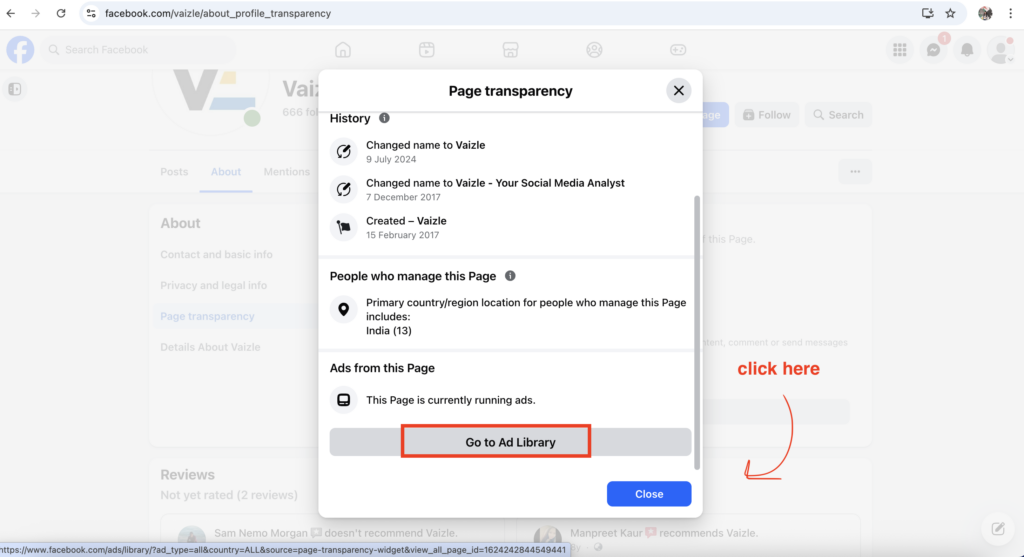
You’ll see every ad that page is currently running. Organized by platform. Easy to compare their Facebook vs. Instagram strategies.
Best for: Deep-diving one specific brand.
👉 RELATED: Read our in-depth Facebook Ads guide to get ahead with latest ad strategies!
Most people open the Ad Library, type a brand name, hit enter, scroll for 30 seconds, and leave. But that’s just broad research!
Real competitive research starts with a question. Not “What ads is Nike running?” but “How is Nike positioning their new running shoe launch?” or “What offer are they using for back-to-school?”
The difference: one is aimless scrolling. The other gives you actionable intelligence.
Here’s how to search with purpose.
Don’t just search. Decide what you need to know.
Example research questions:
Your question determines which filters you’ll use. We’ll walk through a real example.
Let’s say you sell athletic wear. Nike just launched a campaign you keep seeing. You want to understand their approach.
Step 1: Enter Your Search Term
Go to facebook.com/ads/library.
Type “Nike” in the search box. Hit enter.
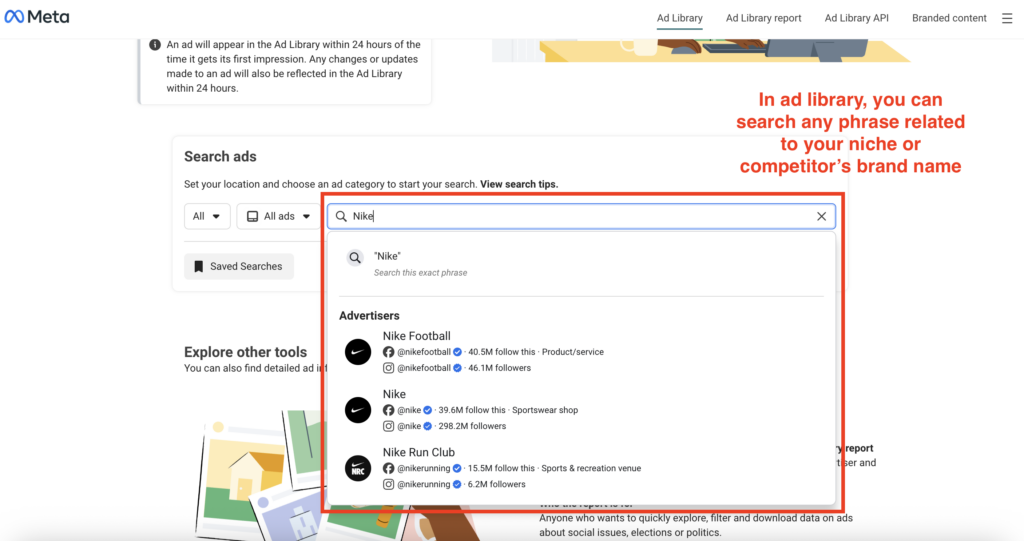
Step 2: Choose Your Country
The country filter defaults to your location. But Nike’s US strategy might differ from their UK or India strategy.
Decision point: Where does your target audience live?
If you’re competing in the US market, select “United States.” If you’re expanding to Europe, pick the specific country you’re targeting.
Why this matters: Nike shows different creative to different markets. Their India ads focus on cricket. Their US ads feature basketball and running. Cultural context changes everything.
For this example, we’ll select United States.
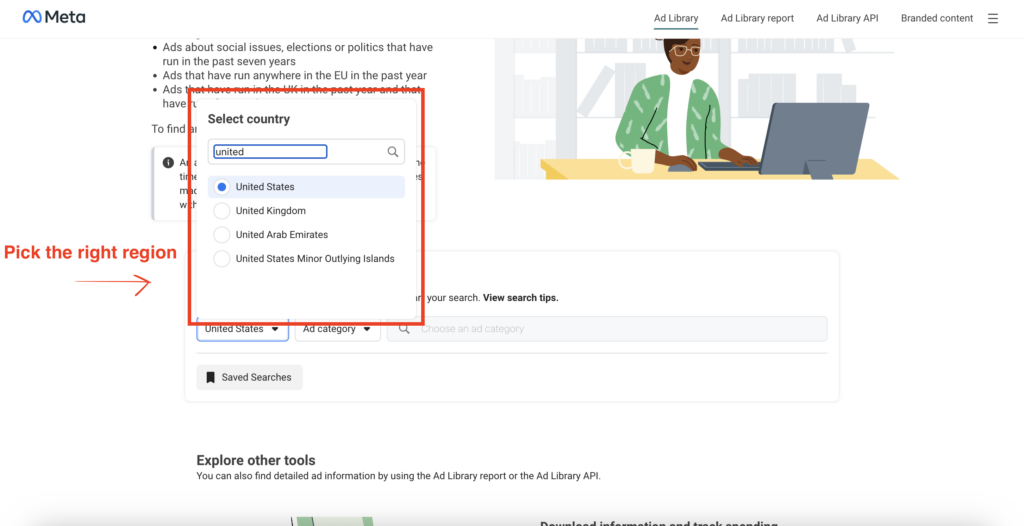
Step 3: Select Ad Category
You’ll see options:
For commercial research, always choose “All ads.”
The political category is useful if you’re researching campaign strategies for elections or advocacy groups. But for business competitive research, you want commercial ads.
Now you’ll see: Hundreds of results. Way too many. Nike runs ads globally across dozens of product lines. You need to narrow this down.
At this stage, use more filters to actually see the ads that are relevant for your research right now.
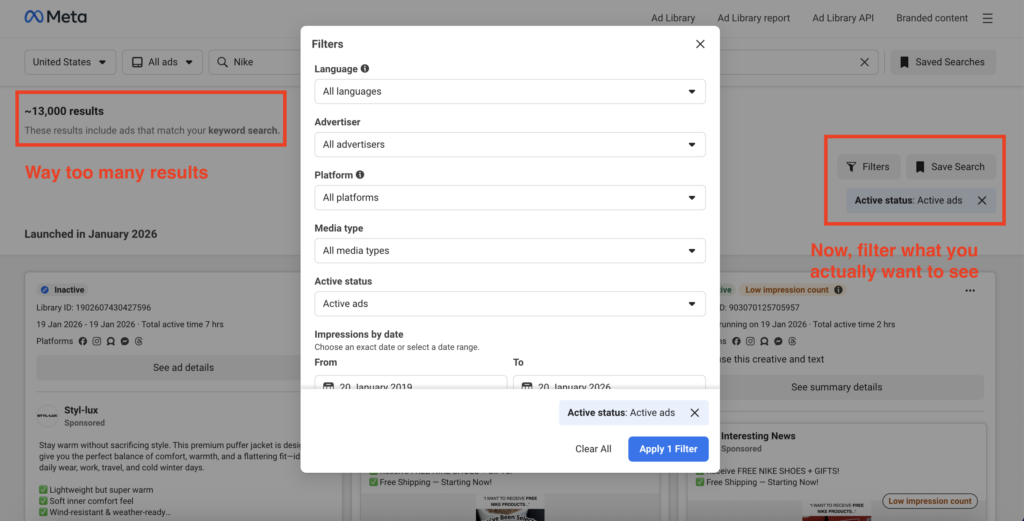
Step 4: Filter by Platform
Here’s where strategy kicks in.
Your options:
When to use each:
“All platforms” — Use this when you want to see their complete advertising presence. You’ll see which ads run everywhere vs. platform-specific creative.
“Instagram only” — Use this when you’re researching visual trends. Instagram ads tend to be more lifestyle-focused, aesthetic-driven. If you’re in fashion, beauty, food, or travel, Instagram filtering shows you what’s working visually.
“Facebook only” — Use this for community-focused brands or older demographics. B2B companies often prioritize Facebook. Parent-focused brands too.
For Nike, let’s select “Instagram only” because we want to see their visual storytelling approach.
Results change dramatically. You went from 13,000+ ads to maybe 7600 Instagram-specific ads.
Step 5: Filter by Media Type
Now you’re down to Instagram ads. But you still have images, videos, and carousels mixed together.
Your options:
When to use each:
“Video” — Use this when you want to study storytelling. How long are their videos? What’s the hook in the first 3 seconds? Do they use voiceover or text overlays?
“Image” — Use this for design inspiration. Color palettes, composition, text placement.
“Carousel” — Use this to see product showcases. Carousels are typically used for multiple products or step-by-step demonstrations.
For Nike, we’ll select “Video” because we want to understand their storytelling techniques.
Now you have: Nike’s Instagram video ads running in the United States. Now, we see 3700 results.
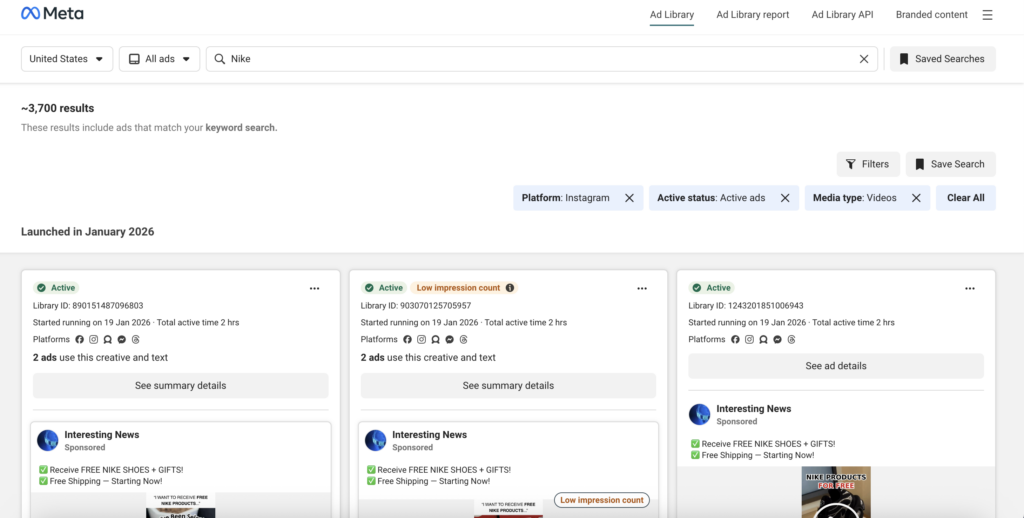
Step 6: Active vs. Inactive
Final filter: Active status.
“Active ads” shows what’s running RIGHT NOW. Current strategy.
“Inactive” shows what stopped recently (last year for EU/UK, last 30 days elsewhere).
For current intelligence, choose “Active ads.”
But here’s a power move: If you’re in the EU or UK, switch to “Inactive” to see last year’s holiday campaigns. Study what they ran for Black Friday last year. That’s your blueprint for this year.
For this search, we’ll stick with “Active ads.”
You’ve narrowed from 13,000 ads to 3700 highly relevant results.
Here’s what each result shows:
Thumbnail preview — The video’s opening frame
“Started running on [date]” — When it went live
Instagram icon — Confirms platform
Creative preview — Click to watch the video
Now analyze patterns:
Are most videos 15 seconds or 60 seconds? Length trends matter. Shorter = snackable content. Longer = deep storytelling.
Do multiple ads have similar opening hooks? If three ads all start with “Tired of uncomfortable shoes?” that’s their tested angle.
Which videos have been running longest? Sort mentally by date. Anything active for 60+ days is probably profitable. Study those first.
Step 7: Click to Expand Details
Click any ad to see the full view.
You’ll get:
Watch the video like a marketer, not a consumer:
What problem do they highlight in the first 3 seconds? What solution do they position? Is there a clear product demo or is it lifestyle imagery? What’s the call-to-action at the end? Do they use text overlays or just voiceover?
Screenshot or screen-record ads you want to reference later.
Scenario: “I need video creative inspiration”
Scenario: “I’m launching in a new market”
Scenario: “I need to understand seasonal campaigns”
Scenario: “I want to see competitor’s full strategy”
You know you’ve done effective research when:
You can answer your original research question (remember that from the start?)
You found 10-20 highly relevant examples (not 200 random ads)
You spotted patterns (3+ ads with similar approaches)
You have specific insights to share with your team (not vague observations)
If you just have a folder of random screenshots with no clear takeaway, you searched too broadly. Go back. Add more filters. Get specific.
Most people click an ad and see… an ad. You need to see the decisions behind it.
Here’s how to translate what the Ad Library shows you into actionable intelligence.
| What You See | What It Actually Means | Why It Matters |
|---|---|---|
| “Started running on Jan 5” | Ad went live on that date | Longevity = profitability signal |
| Facebook + Instagram icons | Runs on both platforms | Omnichannel approach or testing |
| “Ad languages: English, Spanish” | Targeting multiple markets | Geographic expansion clue |
| Video creative | Format choice | Video = storytelling or education |
| “Shop Now” CTA | Direct response campaign | Optimized for immediate sales |
| 90+ days active | Still running after 3 months | Probably profitable (brands kill losers) |
1. “Started Running On” ≠ Created Date
People think this is when the ad was created. Wrong.
It’s when Meta started serving it. The ad might have been created weeks earlier, sitting in drafts. Or it could’ve run before, paused, then restarted.
What matters: If it’s been active for 60+ days, that’s a proven performer. Brands don’t waste budget on ads that don’t work.
2. Multiple Platforms ≠ Bigger Budget
Seeing an ad on Facebook, Instagram, and Audience Network doesn’t mean the brand is spending more.
Meta’s campaign structure lets you select multiple placements with one budget. Cross-platform presence means they trust this creative to work everywhere, not that they’re throwing money at it.
3. Long-Running ≠ Always Successful
Some brands forget to turn off ads. Or they’re running evergreen content that doesn’t need optimization.
Long-running is usually good, but verify. Check if they’re running OTHER ads too. If yes, the old one’s probably working. If this is their ONLY ad for months? They might just be lazy.
The Ad Library doesn’t show targeting details (age, gender, interests, behaviors). You won’t see performance metrics (impressions, clicks, conversions). You won’t see ad spend for commercial ads (political ads show ranges).
Can you infer some of this? Yes. An ad for women’s products with female models is probably targeted to women. An ad in Spanish is targeting Spanish speakers. But you’re guessing, not seeing Meta’s actual settings.
Don’t waste time trying to reverse-engineer targeting. Focus on what you CAN see: creative, messaging, offers.
You know how to search. You know how to read results. Now here’s what to actually DO with this tool.
You’re launching a new product. Your main competitor just launched theirs. You need to know their angle.
Search their brand name. Filter to “Active ads only.” Look at everything they’re running right now.
Screenshot all creatives. Then analyze:
What problem are they highlighting? What solution are they selling? What’s their offer (discount, free trial, value prop)? What’s their visual style (bold colors, minimal, lifestyle imagery)? What CTA language are they using (“Get Started” vs. “Shop Now” vs. “Learn More”)?
Create a competitive brief. Share it with your team. Now you’re not guessing what they’re doing. You know.
Your Challenge: You’re stuck on creative direction. Should you do video or static? Short or long copy? Product demo or lifestyle?
The Process:
Search your product category (not a specific brand). Filter to “Video” or “Carousel” depending on what you’re testing. Look for ads that have been active 60+ days. Those are proven winners.
Watch 10-15 of these videos. Take notes.
Pattern Recognition:
How long are they? (15 seconds vs. 60 seconds — trends shift)
What’s the hook in the first 3 seconds? (Question? Problem? Surprise?)
Do they use text overlays? (If yes, how much?)
Is it a product demo or lifestyle story?
What’s the pacing? (Fast cuts or slow narrative?)
After analyzing 15 ads, you’ll see patterns. Maybe 80% of winning ads in your category are under 20 seconds with bold text overlays. That’s your creative direction.
Black Friday is 6 weeks away. You need campaign ideas.
Search: “black friday” | “cyber monday”
(The pipe symbol means “or” — you’ll see ads containing either phrase)
If you’re in the EU/UK, you can see last year’s campaigns since inactive ads stick around for a year. Study what brands ran in November 2024.
What to Analyze:
Offer Structure: Is everyone doing “Up to 50%” or “50% off everything”? There’s a difference. “Up to” lets you discount selectively. “Everything” commits you.
Urgency Tactics: Countdown timers? “While supplies last”? “24-hour flash sale”? Which approach feels stronger for your brand?
Bundle Strategies: Are they selling product bundles, buy-one-get-one, or straight discounts?
Email Capture: Do ads lead to immediate purchase or email signup for “early access”?
Steal the structure. Not the creative. You’re learning from proven holiday playbooks.
You’re expanding to the UK. You sell productivity software. You need to understand how UK competitors position similar tools.
Change your country filter to “United Kingdom.” Search your product category.
Look for Localization Differences:
Language: British spelling (colour, optimise, organisation). Slang or phrases Americans don’t use.
Pricing: Do they show £ prices in ads? Or “Starting at £9/month” vs. just “Try free”?
Regulatory Disclaimers: EU/UK have stricter ad rules. What disclaimers appear?
Cultural References: Are they using humor, royal references, football (soccer) metaphors that wouldn’t work in the US?
Build a localization checklist. Don’t just translate your US ads. Adapt them to what’s already working in that market.
Every marketer needs a swipe file. Examples you can reference when you’re creating new campaigns.
Your System:
Create a folder on your desktop: “Ad Swipe File.” Inside, create subfolders:
Every Monday, spend 15 minutes in the Ad Library. Search your industry. Save 5-10 ads to the right folders.
Screenshot the ad. Paste it into a Google Doc or Notion page. Add a note: “Why this works — benefit in headline, specific outcome, clear CTA.”
Six months from now, you’ll have 100+ examples organized by purpose. When your boss asks for “a Facebook ad by Thursday,” you won’t start from a blank screen.
The Ad Library breaks. Often. Here’s how to fix the most common issues.
Possible Causes:
Fixes:
Disable your ad blocker. Refresh the page. Turn off your VPN and try again. Double-check spelling. Try searching the brand’s exact Facebook Page handle. Change your country filter to the brand’s headquarters location.
Possible Causes:
Fixes:
Clear your browser cache and cookies. Open an incognito/private window and try there. Wait 15 minutes before searching again. Switch browsers (try Chrome if you’re on Safari, etc.).
Some categories require login: alcohol, dating, gambling, certain health products.
Fix: Log into your Facebook account. Meta needs to verify you’re 18+.
Why This Happens:
Ads stopped running within the last 24 hours. EU/UK ads that stopped 1+ year ago were purged. Non-EU ads that stopped 30+ days ago were purged. The ad violated Meta’s policy and was removed.
Reality Check: The Ad Library isn’t perfectly comprehensive. Some ads slip through moderation. Brands can pause campaigns instantly. If you see an ad in your feed but can’t find it in the library, screenshot it immediately.
Common brand names cause conflicts. Searching “Amazon” might show Amazon rainforest advocacy groups, not the retailer.
Fix: Be more specific. Search “Amazon Prime” or “Amazon AWS” instead. Or paste the brand’s Facebook Page URL directly into the search.
Run through this list. One of these fixes works 90% of the time.
Here’s the mistake most marketers make: They screenshot 47 ads. Save them to a folder labeled “Inspiration.” Then nothing happens.
Research without action is procrastination with extra steps.
You found winning ads. Great. But what are you supposed to DO with them?
Copy the creative? (Risky, off-brand)
Mimic the offer? (Maybe it won’t work for your audience)
Change everything based on one competitor? (Reactionary, not strategic)
You need to connect what you learned to what’s actually working for YOUR campaigns.
Step 1: Research (Ad Library)
Find 5-10 competitor ads. Note their offers, formats, CTAs, and platforms. Save screenshots.
Step 2: Benchmark (Your Analytics)
Pull your own Meta Ads data from the last 30-60 days. Look at engagement rates, click-through rates, and conversion rates by ad type.
Step 3: Identify Gaps
Compare. Are competitors doing something you’re not?
Different ad format? (They’re running carousels, you’re only doing static images)
Stronger offer? (They offer free trials, you only discount)
Platform difference? (They’re heavy on Instagram, you’re Facebook-only)
Step 4: Ask Better Questions
This is where most marketers get stuck. You have data. You have competitor insights. Now you need to know what to do about it.
Instead of manually cross-referencing spreadsheets and guessing, use an analytics tool that can answer specific questions.
This is where Vaizle AI comes in.
Connect your Meta Ads account. Then ask questions that combine YOUR performance data with what you learned from competitor research.
Example Queries:
“Show me our engagement rate vs. industry average for carousel ads”
“Which of our ads performed best in the last 30 days?”
“Compare our video ad CTR to our image ads”
Now layer in your Ad Library findings:
“Competitor X runs 15-second videos. Our videos are 60 seconds. What’s our completion rate?”
“Their offer is ‘Free trial.’ Ours is ‘20% off.’ Which converts better historically for us?”
“They’re going hard on Instagram. What’s our Instagram vs. Facebook ROAS?”
You’re not blindly copying competitors. You’re using their strategies as hypotheses, then testing against your own data.
Ready to bridge the gap between competitor research and your campaign performance? Connect your Meta Ads account to Vaizle AI and start asking smarter questions.
Make this a habit:
Monday morning (20 minutes):
Set a recurring calendar reminder. Competitive research isn’t a one-time project. It’s a weekly discipline.
The Meta Ad Library is free competitive intelligence sitting in plain sight. You now know how to search it properly, decode what you’re seeing, use advanced filters, troubleshoot when it breaks, and most importantly—turn research into action.
Most marketers will screenshot a few ads and call it done. You’re different. You’ll build a weekly research habit, connect findings to your own analytics, and ask smarter questions about what’s working.
Ready to bridge the gap between competitor research and your own campaign performance? Connect your Meta Ads account to Vaizle AI and start asking questions like “Why are competitors outperforming us?” with data-backed answers.

Mamta is an SEO Analyst with 3 years of experience. Currently, she is spending her time on content roadmapping to drive organic growth and engagement for SaaS businesses. Mamta is also an avid cinephile who spends her spare time watching latest action and sci-fi flicks from around the world.
Copyright @VAIZLE 2026
