









Instagram has a way of dropping new features into the app before most people know what they are supposed to do with them.
Instants feels exactly like that.
You open your Instagram inbox, notice a small pile of photos in the corner, tap around for a second, and suddenly Instagram is asking you to share a real-time photo. Not a Story. Not a normal DM. Not something you can polish, edit, and post later.
So what is Instagram Instants actually for?
In simple terms, Instagram Instants lets you share quick, disappearing photos with your Close Friends or followers you follow back. You can add a caption before sharing it, choose who gets to see it, and view Instants shared by others from your inbox.
But there are limits too. You can’t upload from your gallery. You can’t edit Instants like Stories. You don’t get a Story-style viewer list. And depending on your account or app version, some interaction options may not appear the way Instagram describes them.
This guide breaks down how Instagram Instants works, how to send one, who can see it, what happens after someone opens it, and what you should know before using it.
Instagram Instants is a disappearing photo-sharing feature inside Instagram’s inbox. It lets you capture a photo in the moment, add a short caption, and share it with a limited audience, either your Close Friends or followers you follow back. That part is important because Instants are not public posts. They do not appear on your profile grid, they are not Reels, and they are not the same as Stories.
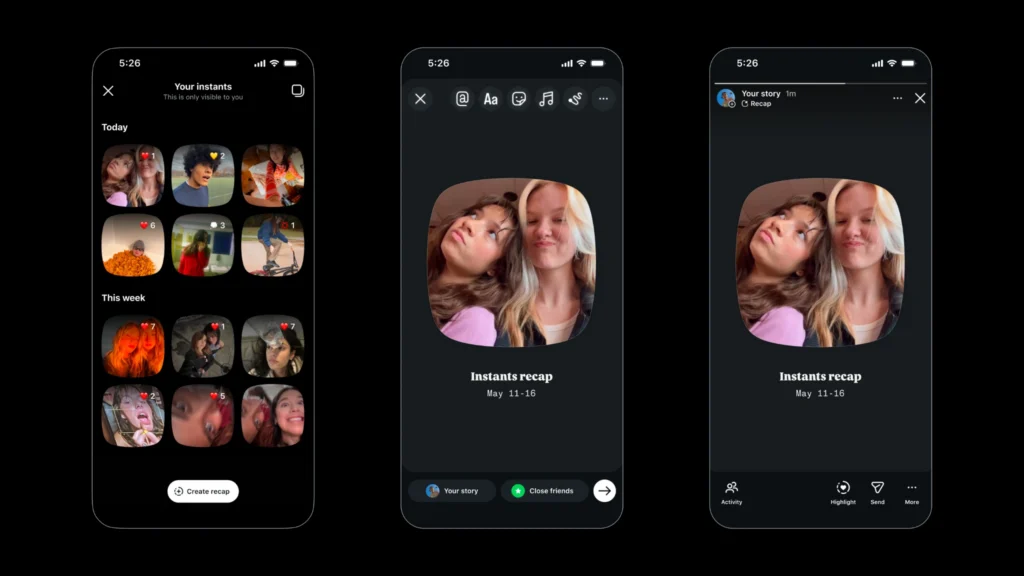
The easiest way to understand Instants is this: they are quick, real-time photos made for your inbox, not polished updates made for your profile. Instead of uploading something from your gallery, editing it with stickers, and posting it to everyone, Instants pushes you toward something more casual. You take the photo, add a caption if needed, choose the audience, and share it.
It feels like Instagram is trying to create a lighter space for everyday moments. The kind of thing you may not want to post as a Story, but still want a smaller circle of people to see. At the same time, Instants are not as flexible as Stories. You cannot upload from your camera roll, you cannot edit them heavily, and you do not get a Story-style viewer list after sharing.
So before treating Instants like a new content format, it is better to understand them as a simple sharing feature: quick photos, limited audience, inbox-first experience.
Instagram Instants is simple once you understand the flow, but it is also easy to mess up the first time because it does not behave like Stories.
You do not click a photo, review it, edit it, and then decide whether to post. With Instants, you choose the audience first, add a caption if you want, and then tap the camera button. Once you tap it, the Instant is captured and sent.
Step 1: Open Instants from your inbox
Go to your Instagram inbox and tap the Instants/photo stack icon. It is usually present on the bottom-right side of your messaging screen. Instagram may first show you Instants shared by other people. Once you’ve seen all the instants, camera screen will automatically open up.
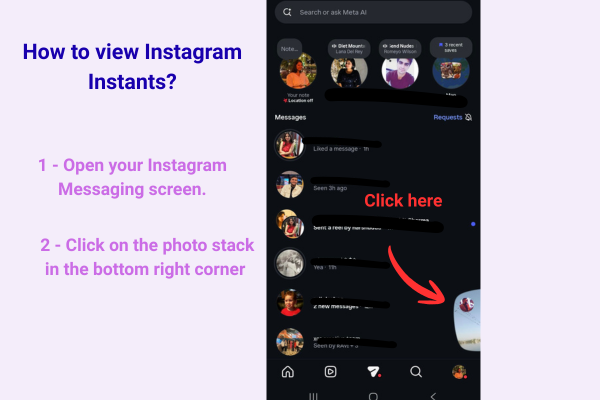
If you don’t want to see Instants shared by everyone else, you can simply click on the camera icon from the top-right corner and create your own Instant.
Step 2: Understand the camera screen
Once the camera opens, you will see a few important controls. The stack-style icon on top-right corner lets you view Instants from other people. The four-box icon next to it lets you view your past Instants.
This is useful because Instants are not managed like normal DMs or Stories. If you want to check what you have shared earlier, delete an Instant, save it to your camera roll, or create a recap, this past Instants section is where you go.
Step 3: Choose who can see your Instant
Before you capture the photo, look at the bottom of the screen. Instagram lets you choose between Close Friends and followers you follow back.
This step matters because you do not get a normal “review and post” screen after taking the photo. Once you tap the camera button, the Instant is sent to the audience selected at the bottom.
Step 4: Add a caption if you want
To add a caption, tap on the camera screen before taking the photo. You can type simple text, but this is not like editing a Story. You are not adding stickers, layers, filters, or a polished layout.
Once your caption is added, tap the camera button. The Instant will be captured and sent right away.
Step 5: Delete or save your Instant later
If you want to manage something you already shared, go back to the four-box icon where your past Instants appear. From there, you can delete an Instant or save it to your camera roll.
Step 6: Create a recap from past Instants
Instagram also gives you a Create Recap option at the bottom of your past Instants section. This lets you turn your older Instants into a recap that you can share as a Story.
The most important thing to remember is this: with Instagram Instants, the camera button is basically the send button. Set your audience first, add your caption before capturing, and only tap the camera when you are ready to share.
Adding a caption to an Instagram Instant is not as obvious as adding text to a Story.
There is no separate editing screen after you take the photo. You have to add the caption before capturing the Instant.
Open the Instants camera and tap on the camera screen. This will let you type your caption. Keep in mind that this is only basic text. Instants do not work like Stories, where you can add stickers, filters, music, links, or multiple design layers.
Once you have added the caption, tap the camera button. The photo will be captured and sent immediately to the audience selected at the bottom of the screen.
That is the part people need to be careful about. You are not adding a caption after the photo is taken. You are adding the caption first, then taking the photo, and the moment you tap the camera button, the Instant goes out.
So the safest flow is simple: choose your audience, tap the screen to add your caption, check it once, and then tap the camera button only when you are ready to share.
Instagram Instants are not public posts. They do not appear on your profile, and they are not shown to everyone who follows you by default.
Before you capture an Instant, Instagram lets you choose the audience from the bottom of the camera screen. Right now, the two options are Close Friends and followers you follow back.
If you choose Close Friends, only people in your Close Friends list can see that Instant.
If you choose followers you follow back, the Instant can be seen by mutual followers. That means people who follow you and whom you also follow back.
This is also why you should check the audience before tapping the camera button. Instants do not give you the same slow “capture first, review later, then post” flow that Stories do. Once you tap the camera button, the Instant is captured and sent to the audience selected at the bottom.
One more thing to keep in mind: Instants are not the same as sending a private photo to one specific person in DMs. The sharing is limited, but it is still based on the audience option you pick, not a single-recipient chat.
No. Instagram Instants do not show a Story-style viewer list.
This is one of the biggest differences between Instants and Stories. On Stories, you can open the viewer list and see exactly who watched it. With Instants, that kind of view data is not shown in the same way.
So if you share an Instant, do not expect to see a full list of people who opened it. The feature feels more private and lightweight, but it also gives you less feedback. You can share the moment, but you cannot track it the way you track Story views.
That also changes how you should use Instants. If you are posting something because you want reach, reactions, or visible engagement, Stories are still better. Instants are more suited for small, casual updates where you do not need to know exactly who viewed them.
In short: people may be able to see your Instant based on the audience you selected, but you cannot check a full viewer list afterward.
To view other people’s Instants, go to your Instagram inbox and tap the Instants/photo stack icon. Instagram will show you Instants shared by people whose audience settings include you.
You can also access this while creating your own Instant. When the Instants camera opens, look at the top-right corner. The stack-style icon takes you back to the Instants shared by other people.
Once you open someone’s Instant, you can react to it with emojis. This is the main interaction option right now. It is quick, lightweight, and closer to reacting to a moment than starting a full conversation around it.
But there is one thing you should know before tapping around too casually: once you view someone’s Instant and tap on the screen, you may not be able to see it again. Instants are meant to be temporary, so they do not behave like Stories, posts, or saved DMs that you can revisit later.
So if someone shares an Instant, treat it like a one-time view. Open it when you are ready to see it, react if you want, and do not expect to come back to it later.
Once you share an Instant, it does not disappear from your side immediately. Instagram keeps your past Instants in a separate section inside the Instants camera.
To find them, open the Instants camera and look at the top-right corner. Next to the photo stack icon, you will see a four-box icon. Tap that, and Instagram will show your past Instants.
This section is useful because it gives you some control after posting. If you shared something by mistake, you can delete the Instant from there. If you want to keep a copy for yourself, you can save it to your camera roll.
You will also see a Create Recap option at the bottom. This lets you turn your past Instants into a recap that you can share as a Story.
That makes Instants a little different from the way they first appear. They feel temporary when someone else views them, but Instagram still gives you a private place to manage your own Instants later.
So if you ever want to clean up what you posted, save a moment, or turn a group of Instants into a Story, go back to the four-box icon inside the Instants camera.
Instagram Instants is not a feature you need to overthink, but it is definitely one you need to understand before using.
It is built for quick, real-time sharing from your inbox. You choose whether the Instant goes to your Close Friends or followers you follow back, add a simple caption if you want, and once you tap the camera button, it gets sent. That is the biggest thing to remember.
Instants are not Stories. You do not get the same editing tools, gallery uploads, or viewer list. You also should not treat it like a normal DM where you send one photo to one specific person. It sits somewhere in the middle: more casual than Stories, more limited than DMs, and clearly designed for small moments that do not need to live on your profile.
So before you start using Instagram Instants, check your audience, add your caption first, and only tap the camera button when you are ready to share. Once you understand that flow, the feature becomes much less confusing.

Purva is part of the content team at Vaizle, where she focuses on delivering insightful and engaging content. When not chronically online, you will find her taking long walks, adding another book to her TBR list, or watching rom-coms.
Connect your marketing channels, ask questions, compare performance, and get reports without jumping between dashboards.
Copyright @VAIZLE 2026
